Posts

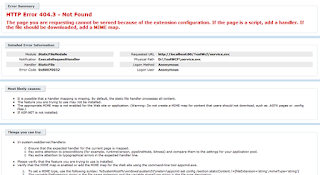
HTTP Error 404.3 – not Found
Image
Error: HTTP Error 404.3 – not Found The page you are requesting cannot be served because of the extension configuration. If the page is a script, add a handler. If the file should be downloaded, add a MIME map. Resolution 1. Start the command window (cmd) as an Administrator. 2. Navigate to: C:\windows\Microsoft.Net\Framework\v3.0\Windows Communication Foundation\ In case you are running on a 64Bit machine, than navigate to: C:\windows\Microsoft.Net\Framework64\v3.0\Windows Communication Foundation\ 3. Run the following command: ServiceModelReg –i Enjoy!

Increase MSCRM Performance

Configure Content Expiration "To Configure content Expiration: 1. On the Microsoft Dynamics CRM Server, in the Internet Information Services (IIS) Manager administrative tool, right-click Microsoft Dynamics CRM Web Site, and then click Properties. 2. In the Properties dialog box, on the HTTP Headers tab, specify for content to expire after 15 days, and then click OK. " TCP Port limit "Increase Ephemeral TCP Port Limit: To increase the maximum number of ephemeral TCP ports 1. In the Registry Editor, navigate to the subkey: HKEY_LOCAL_MACHINE\SYSTEM\CurrentControlSet\Services\Tcpip\Parameters 2. Click Parameters, and then, on the Edit menu, click New. 3. Create a registry entry using the following information: Value Name MaxUserPort Value Type DWORD Value data 65534 Valid Range 5000-65534 (decimal) Default 0x1388 (5000 decimal) Description Controls the maximum port number that is used when a program requests any available user port from the system. Typically, ephemeral (sh...

No records are imported when you use the Bulk Import feature in Microsoft Dynamics CRM and cannot change system settings details

RESOLUTION loadTOCNode(1, 'resolution'); To resolve this issue, configure the CRM application pool and the Workflow service to run under the Network service account. To configure the CRM application pool, follow these steps: 1. Click Start, point to Programs, point to Administrative Tools, and then click Internet Information Services (IIS) Manager. 2. Expand local computer, expand Application Pools, right-click CRMAppPool, and then click Properties. 3. Click the Identity tab, and then click Predefined. 4. Select Network Service from the list, and then click OK. 5. Right-click CRMAppPool, and then click Stop. 6. Right-click CRMAppPool, and then click Start. 7. Close IIS Manager.To configure the Workflow service, follow these steps: 1. Click Start, click Run, type services.mmc, and then click OK. 2. Right-click Microsoft CRM Workflow Service, and then click Stop. 3. Right-click Microsoft CRM Workflow Service, click Properties, and then click the LogOn tab. 4. Click This Account, ...